OpenCut: the free, open-source video editor people are calling a free CapCut
OpenCut is a free, open-source video editor that runs in your browser, with no account and no watermark. We actually tested it: a step-by-step with screenshots for trimming, adding text, captions and music, exporting, and what's still missing compared to CapCut.
If you got here from @lee.sugano's Reel, you already know the gist: OpenCut is a free, open-source video editor that runs in your computer's browser, no account required. The project describes itself as "The open-source CapCut alternative."
Before writing this guide, we actually tested the editor on October 24, 2026, on a MacBook Pro with an M1 chip, in Google Chrome: we created a project, trimmed a video, added text, auto-captions and music, and exported the file. Everything in the step-by-step was seen working, and the screenshots are from the real screens.
- Price: free, no subscription.
- Account: not required.
- Watermark: the video we exported had none.
- Where your video lives: in your computer's browser. In our test, it wasn't uploaded to any server.
- Mobile: doesn't work yet. The site asks you to use a computer.
- Is it better than CapCut? Not yet. It's an early beta with far fewer features.
What OpenCut is
OpenCut is a video editor built by a community of developers and published on GitHub, the site where open-source projects are hosted. Open source means anyone can see how the program was built, line by line. The license is MIT, one of the most permissive out there: it lets you use, copy and modify the program, including for commercial purposes.
The project was created on June 22, 2025. On October 24, 2026, it had 95,939 stars on GitHub (the equivalent of a like, which measures interest in the project) and 9,487 forks, which are copies made by other people to study or tinker with the code.
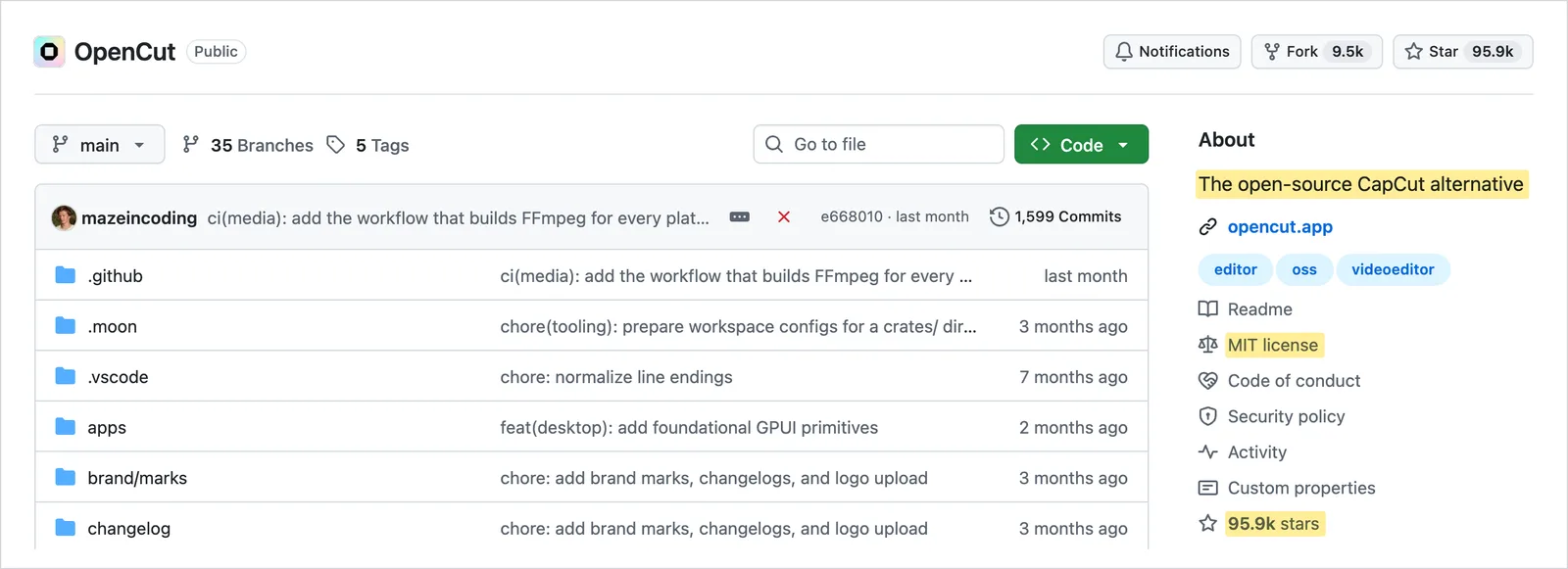
Three versions came out in 2026. Version 0.1.0 (February 23) reorganized the editor. Version 0.2.0 (March 2) added keyframe animation, the blur effect and ripple editing, which automatically closes the gap left by a deleted clip. Version 0.3.0 (April 15) brought masks, an animation curve editor, volume and speed control (with an option to preserve voice pitch), preview zoom, canvas backgrounds, stickers, captions from a transcript file, custom canvas size and much lighter playback.
An important detail: according to the project page, OpenCut is being rewritten from scratch. The new version will have a core in Rust (a programming language) to run in the browser, on desktop and on mobile from a single codebase, plus plugins, an MCP server so AI assistants can use the editor, and a headless mode for automation. Meanwhile, opencut.app keeps running the classic version, which is the one covered in this guide. The new one lives at new.opencut.app until it's ready. For now, the team isn't accepting outside code contributions.
Is it really a "free CapCut"?
Partly. It's worth separating what's true from what's circulating on social media:
- It isn't CapCut and it wasn't reverse-engineered. OpenCut doesn't use CapCut code: it's an editor written from scratch, inspired by it. The comparison comes from the project itself, which presents itself as an alternative.
- It's free and open source, with no account and no subscription.
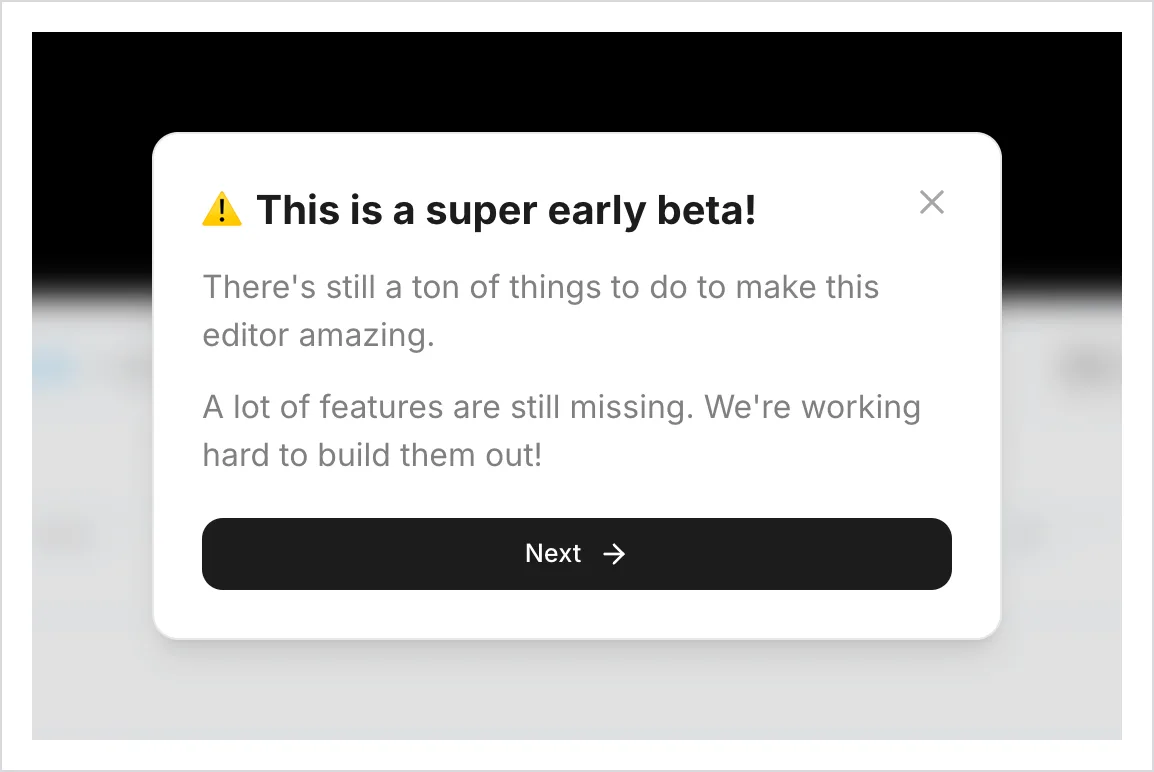
- It isn't better than CapCut today. As soon as the editor opens, you see the warning "This is a super early beta!", followed by a note that many features are still missing.
The classic version's page gives three reasons the project exists: privacy (your videos stay on your device), free features (according to the text, most of CapCut's basic features have become paid) and simplicity.
The second reason has a backstory. In July 2024, Tecnoblog reported user outrage when CapCut's auto-captions became tied to the Pro subscription, which at the time cost R$ 32.90 per month or R$ 234.90 per year in Brazil. Today CapCut says pricing depends on region and platform. In June 2025, an update to CapCut's terms of service also sparked controversy online over the license to user-uploaded content. CapCut stated that nothing changed in the section covering user content.
What you can already do in OpenCut
We used these features in our test, and they worked:
- Choose the video format: 16:9 (landscape), 9:16 (vertical, for Reels, TikTok and Shorts), 1:1, 4:3 or a custom size.
- Import videos and music (the screen also accepts photos).
- Split the video into clips and delete sections.
- Add text, with font, size and color.
- Generate auto-captions from the video's speech.
- Add music and lower its volume.
- Export as MP4 or WebM, at four quality levels.
The screen also shows stickers (flags and shapes) and a Blur effect. According to the 0.3.0 release notes, the editor also has masks, keyframe animation and speed control. We didn't test those features in depth.
Step by step: how to edit a video in OpenCut
You'll need a computer with an up-to-date browser (we tested in Google Chrome) and the video you want to edit, for example an MP4 recorded on your phone. For the screenshots, we used a 10-second vertical sample video with three photos of a coffee shop and one spoken sentence. The numbers in the screenshots show the click order.
1. Open the site and create a project
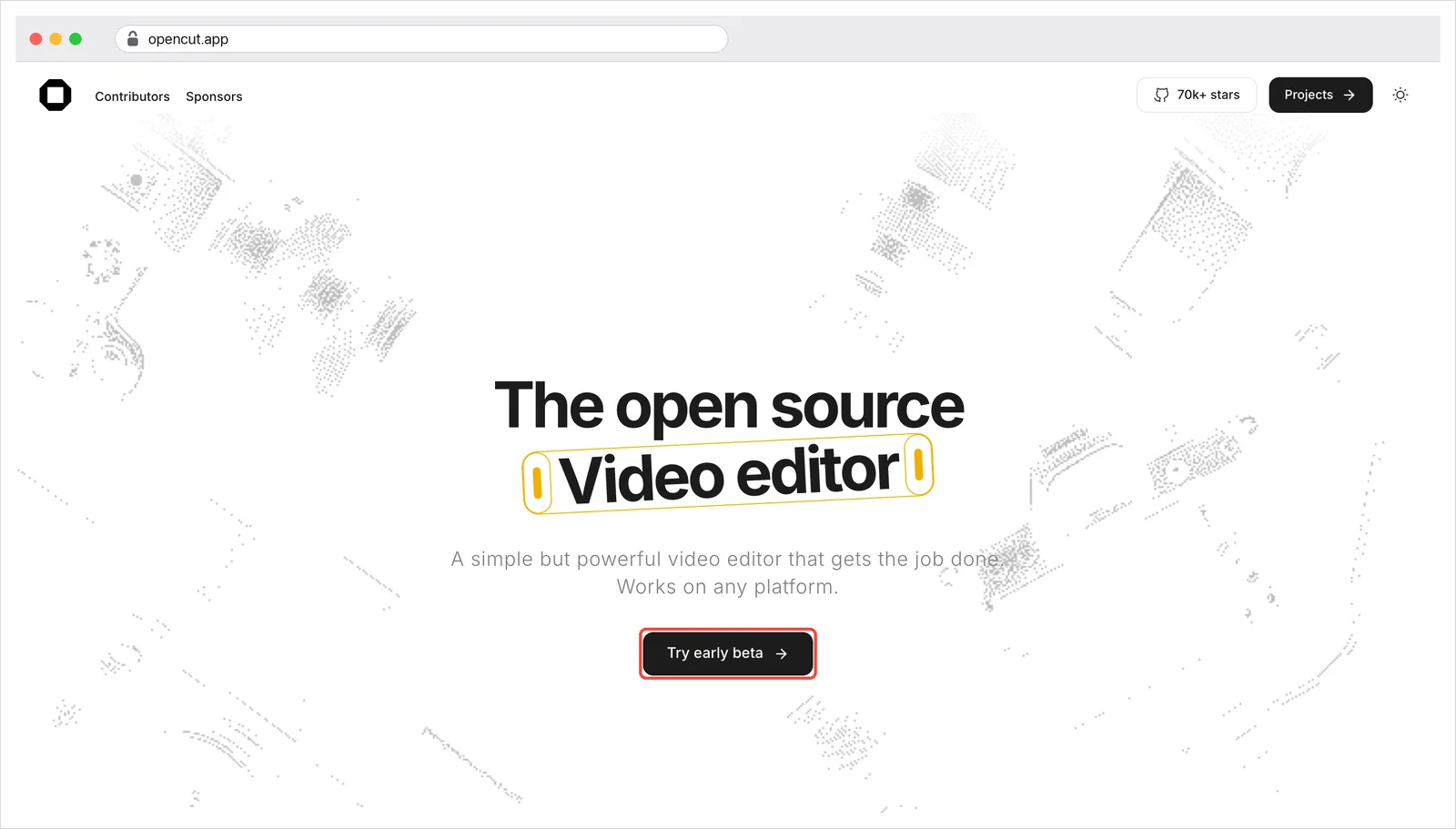
Go to opencut.app and click Try early beta (or Projects, in the top corner).
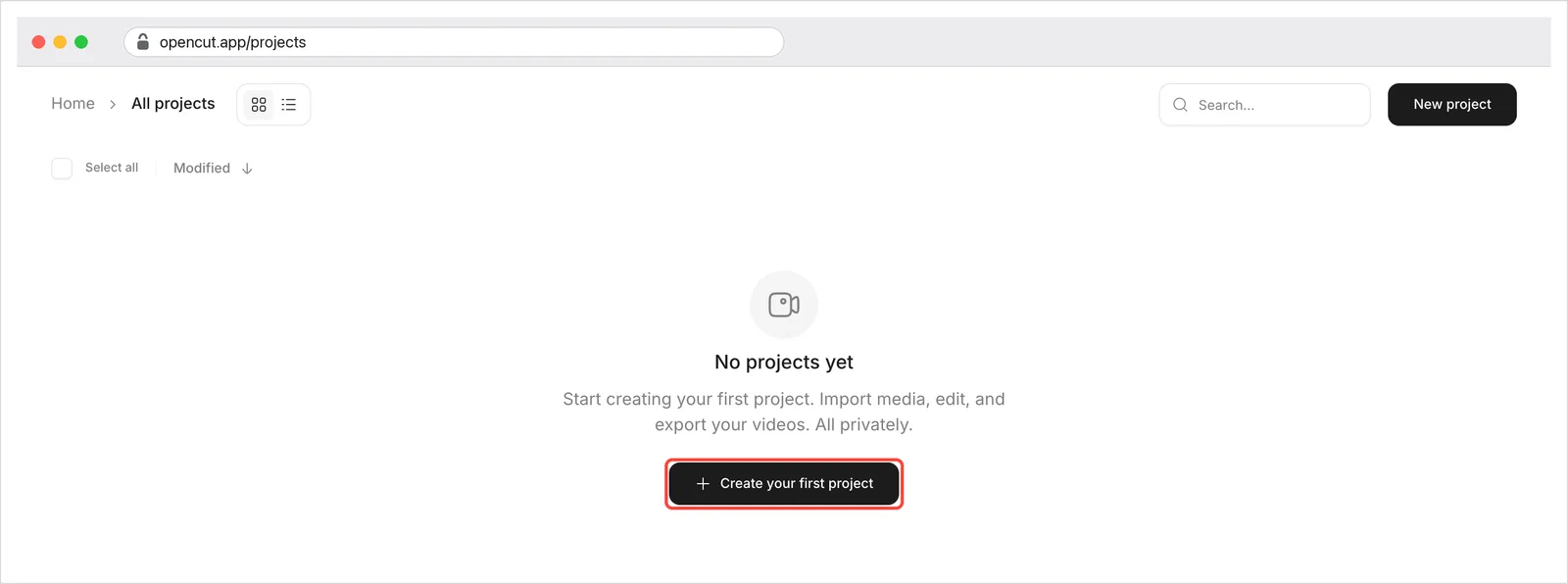
On the projects page, click Create your first project. The site doesn't ask for sign-up, email, or password. Right above the button, it notes that you can import, edit, and export your videos privately.
The editor opens with three welcome windows. Click Next, Next, and Finish.
2. Choose the video format
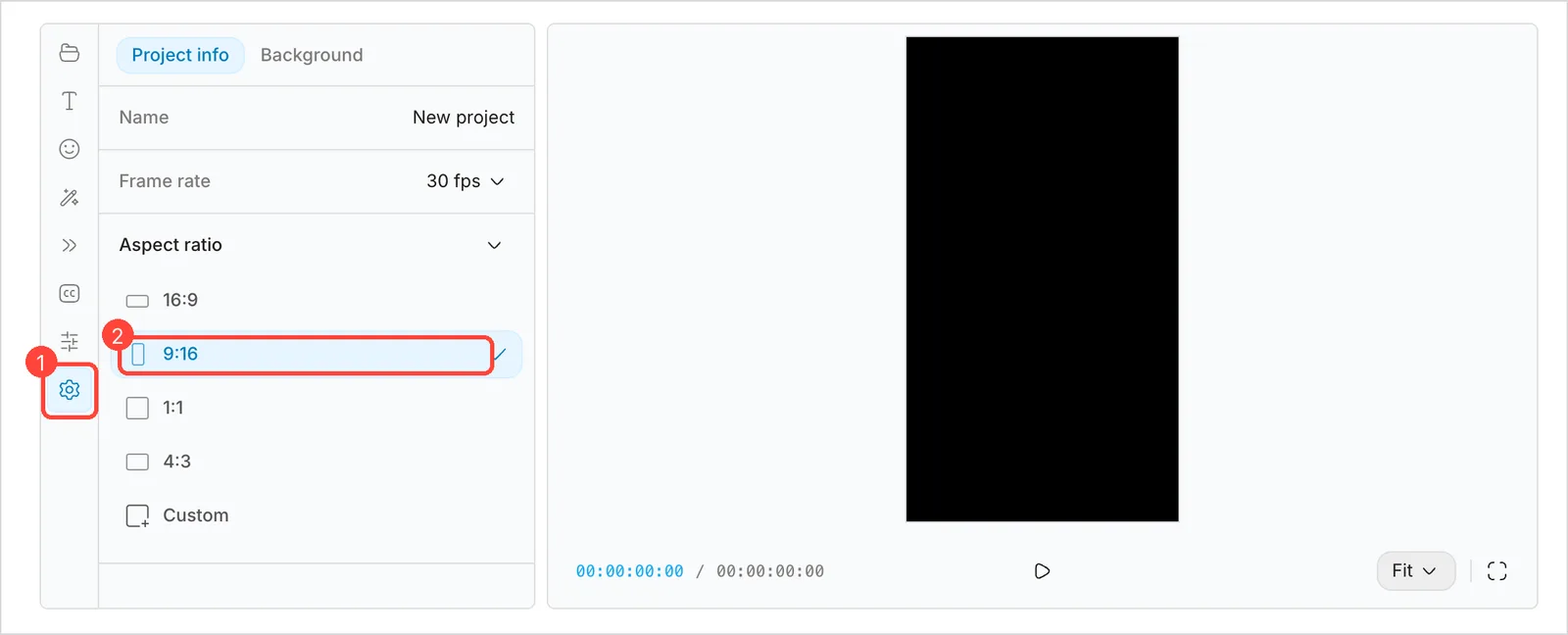
The project starts in landscape format (16:9). For Reels, TikTok, or Shorts, click the gear (Settings, 1) in the icon column on the left, and under Aspect ratio choose 9:16 (2). The preview area switches to portrait right away.
3. Import the video and drag it to the timeline
Click the first icon in the column (Media) and then Import (1) to pick the file from your computer. The video shows up in the list (2). Drag its thumbnail to the wide strip at the bottom of the screen, the timeline (3).
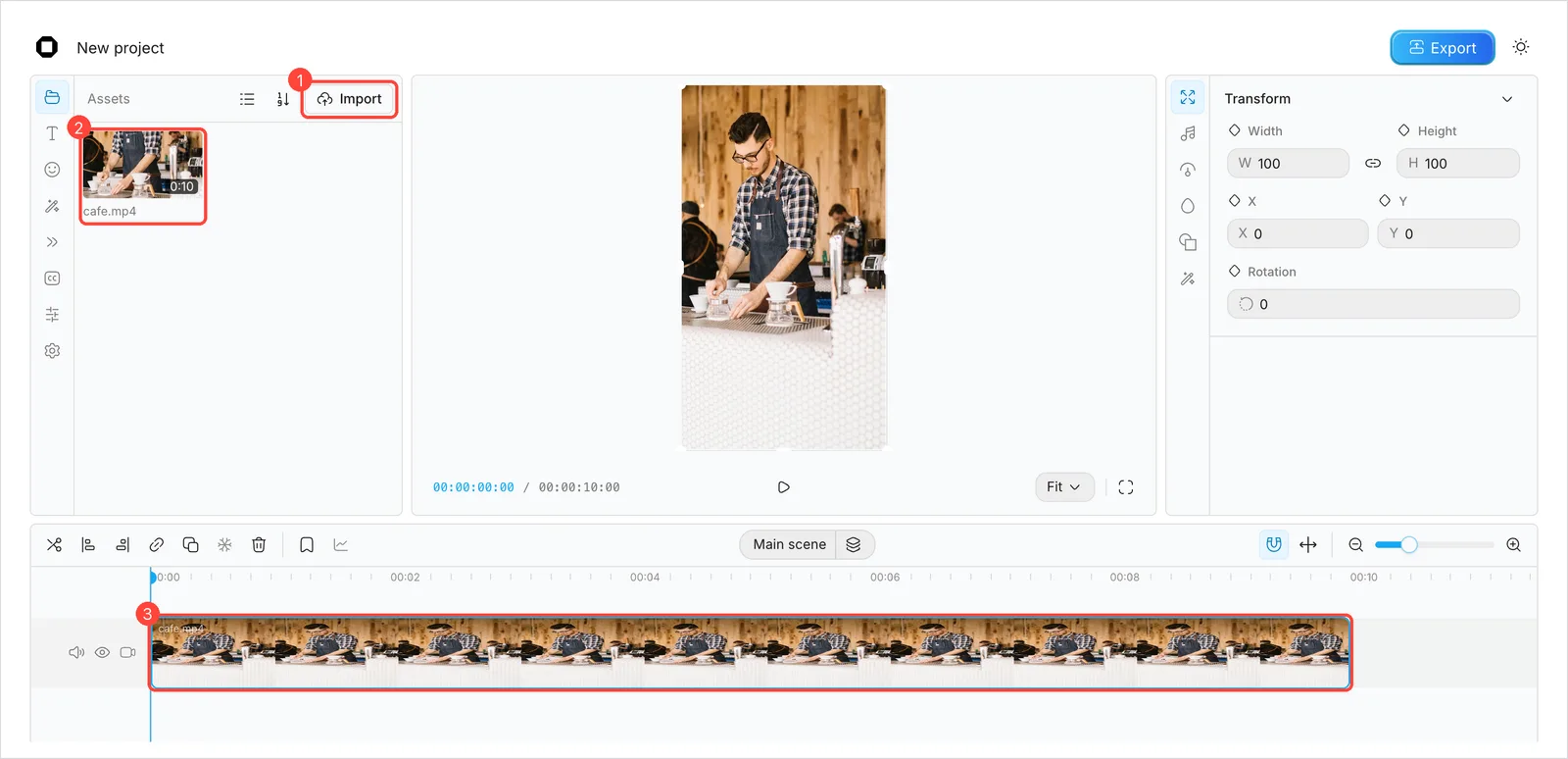
After importing, the message "has been uploaded" appears. Despite the wording, in our test the video never left the computer: we monitored everything the page sent to the internet during editing, and the largest transfer was 821 bytes, less than 1 KB, while the video was about 2 MB. The file stays stored in the browser itself.
If the timeline gets too long to fit on screen, click the magnifying glass with the minus sign, on the right side of the timeline bar, until you can see the whole video.
4. Cut what you don't want
In our example, the first 2.5 seconds were unnecessary. To remove them:
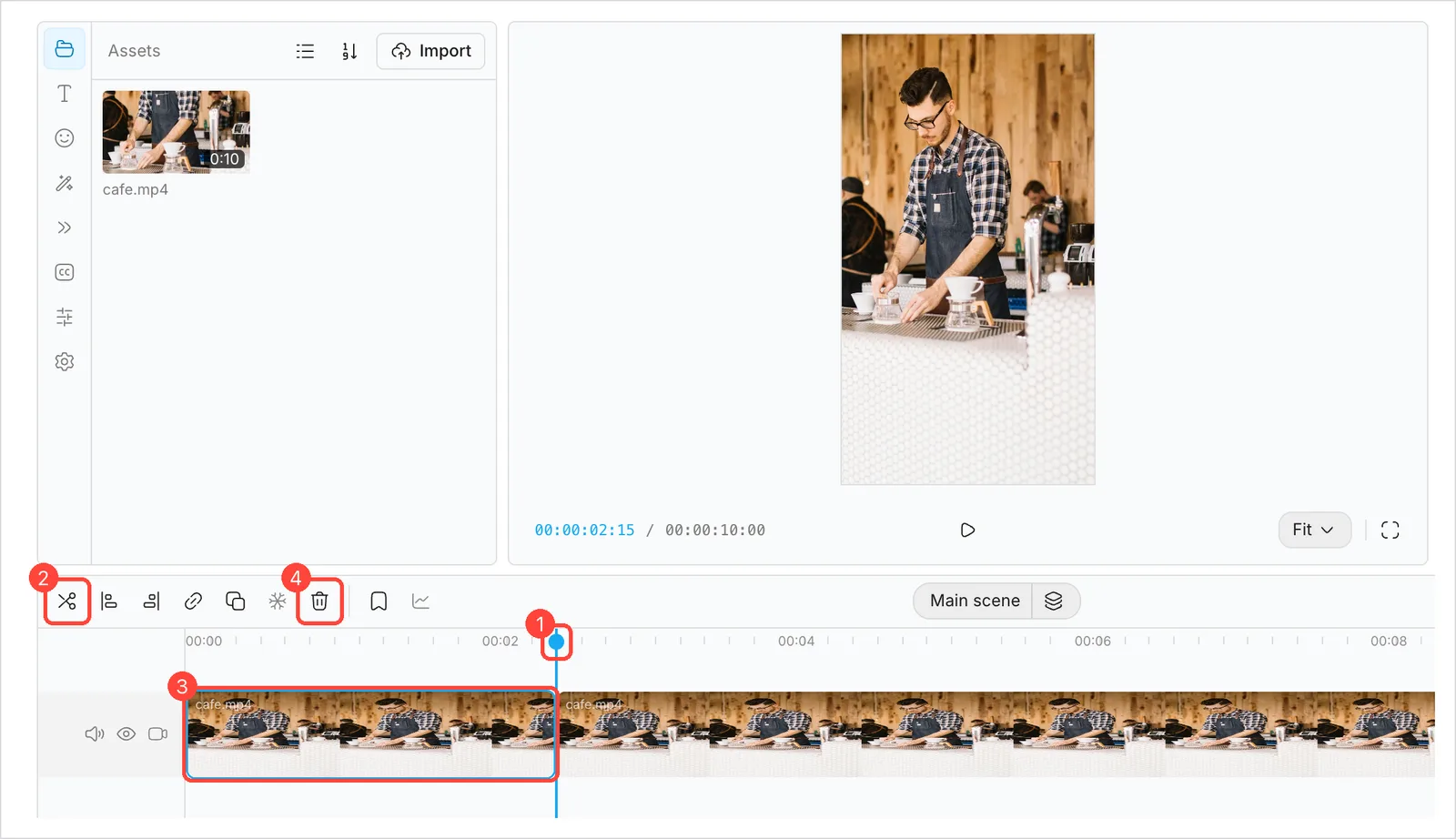
- Click the ruler, just above the video, at the cut point. The blue line moves there (1).
- Click the video on the timeline to select it, then click the scissors (Split element, 2), the first button on the bar. The video becomes two pieces.
- Click the piece you don't want (3) and then the trash can (Delete element, 4).
- An empty gap remains at the start. Drag the remaining piece to the beginning of the timeline.
There's a shortcut: the second button on the bar (Split left) deletes everything before the blue line in one go. With Ripple editing turned on (the arrows button on the right side of the bar), the rest of the video snaps to the beginning on its own, no dragging needed.
In our test, after the cut the preview sometimes kept showing the deleted scene until we clicked the ruler again. The exported file came out correct.
5. Add text
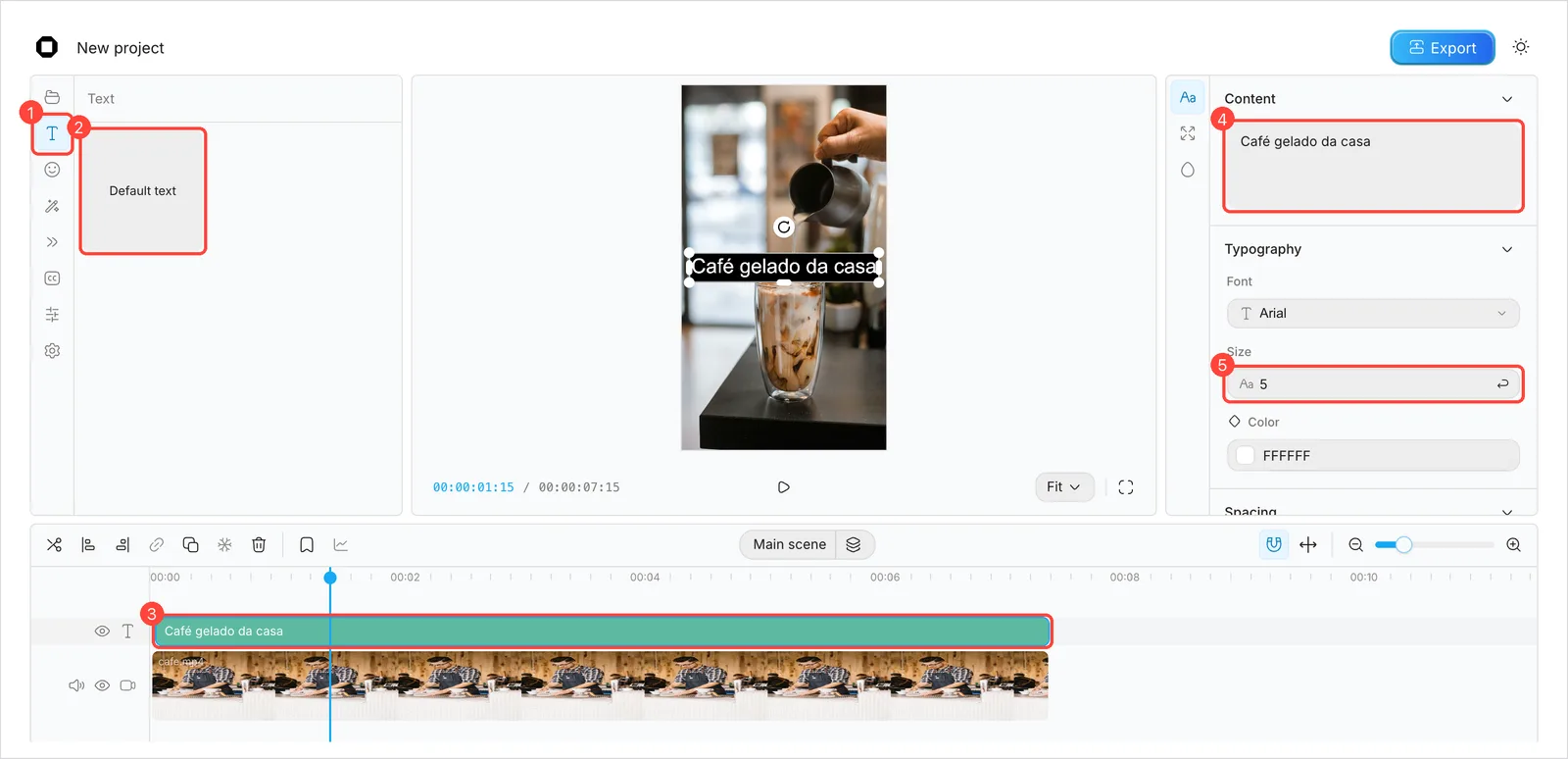
- Click the T (Text, 1) in the left column.
- Drag the Default text block (2) above the video on the timeline (3).
- On the right side, under Content, delete "Default text" and type your own text (4).
- Under Size, adjust the size (5). In vertical video, the default size is too large: our "Café gelado da casa" only fit completely at 5. Under Color, you can change the color.
- The text comes in with a 5-second duration. To keep it on screen for more or less time, drag the right edge of the block on the timeline.
6. Generate automatic captions
- Click the CC icon (Captions, 1).
- Under Language, choose the spoken language, Portuguese (2). There is also an option to let the editor figure it out on its own (Auto detect).
- Click Generate transcript (3).
The first time, the editor downloads a speech recognition model (Whisper, from Hugging Face) and transcribes the audio right in the browser. In our test, it took 20 to 30 seconds, including that download. The sentences come in as text blocks on a new track, above the video (4). We made the captions before adding the music, so the program would only hear the voice.
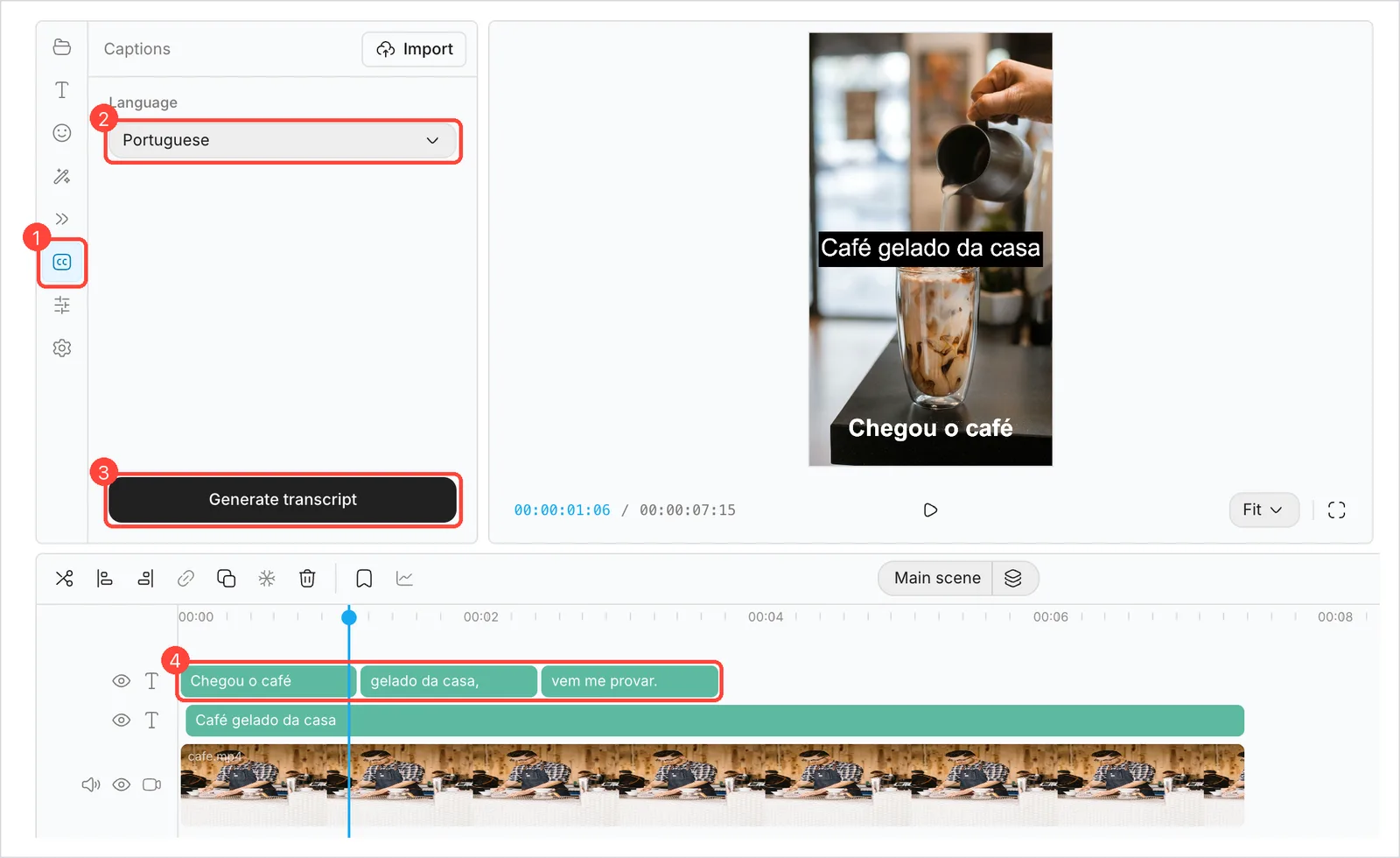
Check each block before exporting: the spoken phrase was "Vem provar!", and the caption came out as "vem me provar". When you click a block, its text appears under Content, on the right side, so you can fix it like any other text. The panel also has an Import button, which, according to the version 0.3.0 release notes, creates captions from an existing transcript file.
7. Add music
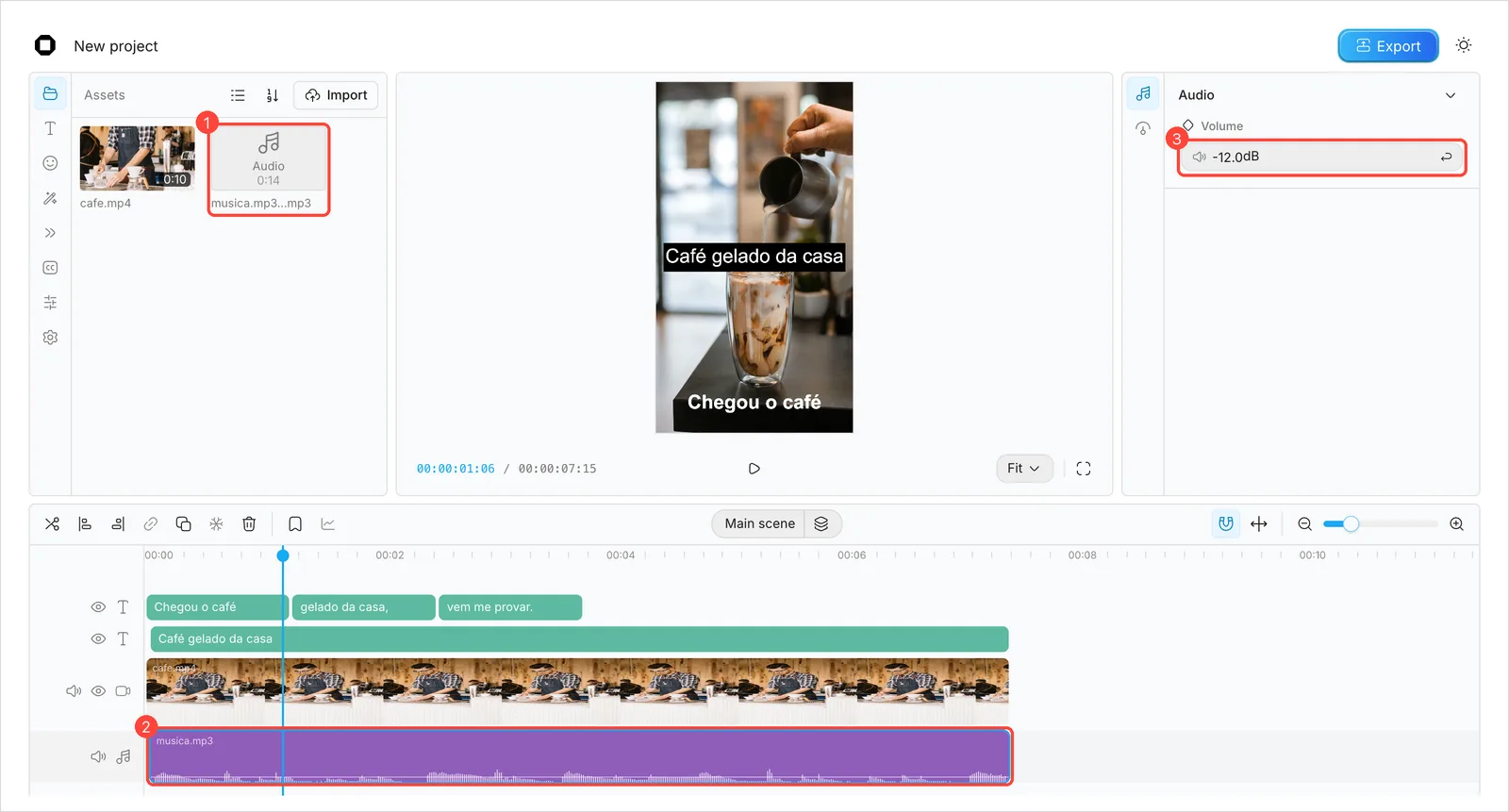
- Go back to Media, click Import and choose the music file (we used an MP3). It shows up in the list with the name "Audio" (1).
- Drag the music below the video on the timeline and align it with the beginning (2).
- If the music is longer than the video, move the blue line to the end of the video, select the music and click the third button on the toolbar (Split right), which deletes everything past the line.
- With the music selected, under Volume, on the right side, type a negative value so it plays quieter than the voice (3). We used -12 dB.
Only use music you have the right to use. Copyrighted music can cause problems when you post the video on social media.
8. Export the video
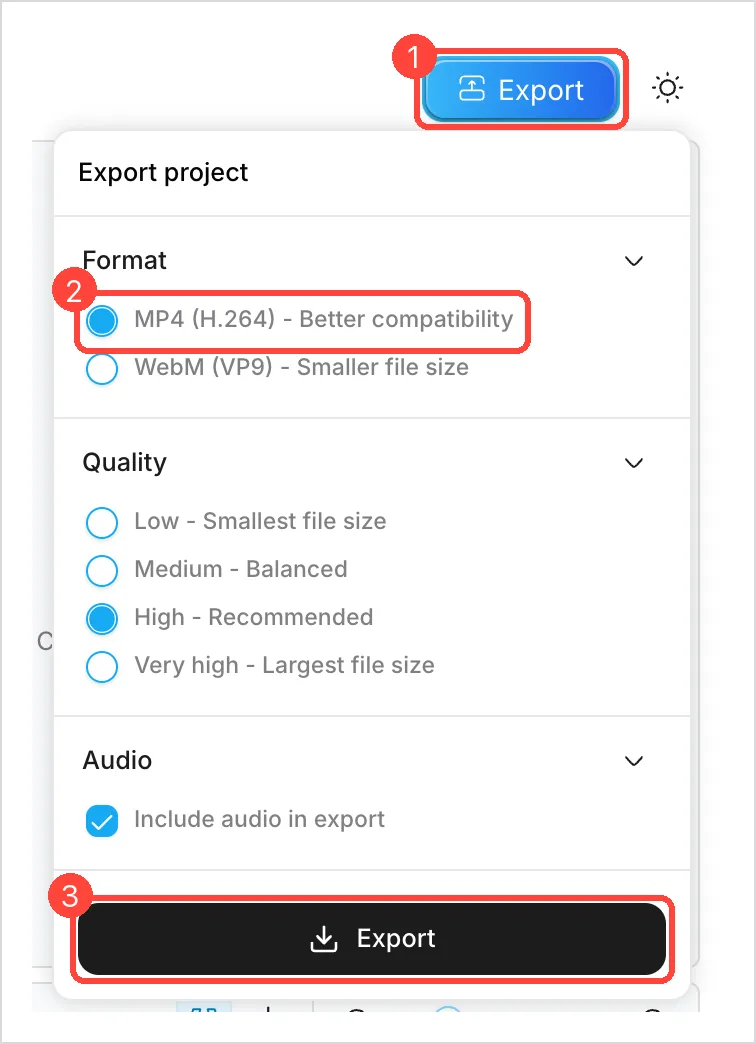
- Click the blue Export button in the top corner (1).
- Under Format, keep MP4 (H.264) (2). The editor itself says MP4 offers the best compatibility and that WebM, the other option, produces a smaller file.
- Under Quality, the recommended setting is High. Keep Include audio in export checked so the video comes out with sound.
- Click Export (3). The browser downloads the file with the project name ("New project.mp4", if you didn't change it).
The result of our test: the 7.5-second vertical video came out as MP4 (H.264 video and AAC audio), at 1080 x 1920 pixels and 30 frames per second, and the export took about 2.5 seconds. We checked frames from the beginning, middle and end of the file: no watermark and no OpenCut logo. The duration matched the project, so no outro was added at the end either. A second test, in WebM, came out with VP9 video and Opus audio.
The photos in the sample video are by Brooke Cagle, pariwat pannium and Demi DeHerrera, on Unsplash.
What OpenCut still lacks
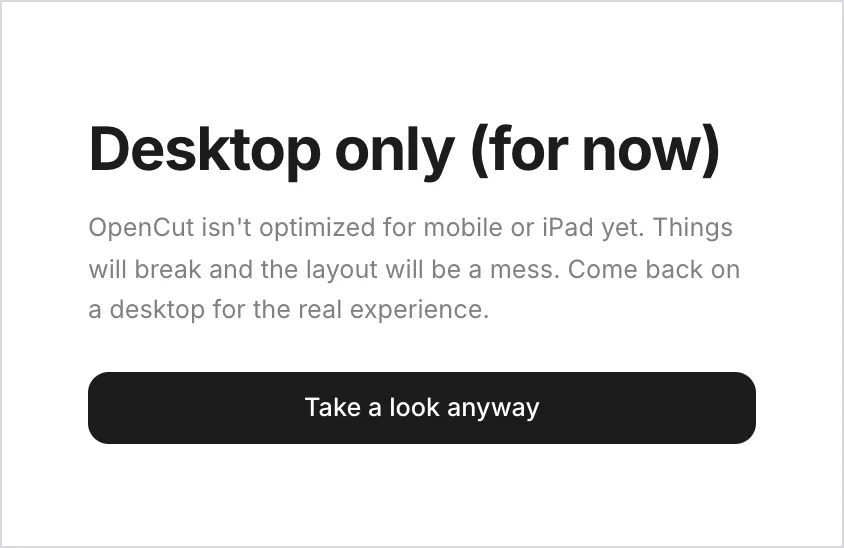
- Mobile version: on a phone, the site shows the notice "Desktop only (for now)" and says the editor isn't ready for phones or iPad yet. The new version promises desktop, mobile and browser, but it isn't ready yet.
- Transitions: the Transitions panel only shows "coming soon". The same goes for the adjustments panel (Adjustment).
- Effects: for now, just one: Blur.
- Templates and AI features: there are no templates to get started with one click, nor features like video generation, background removal or avatar creation, which CapCut offers. The only automatic part is captions.
- Stability: it's a beta. In our test, the preview sometimes showed an old frame after an edit, and the captions got one word wrong.
- Projects stored in the browser: projects live in the browser itself, not in a cloud account. So export your video as soon as you finish. The version 0.3.0 release notes say projects could disappear when the disk ran out of space and that the editor now asks the browser to protect them.
OpenCut vs. CapCut
The comparison below only uses what we verified on October 24, 2026, in the OpenCut editor and on the CapCut website:
| OpenCut | CapCut | |
|---|---|---|
| Price | Free, no paid plan | Free, with a paid plan (Pro) |
| Open source | Yes (MIT license) | No |
| Where it runs | Desktop browser | Phone, desktop and browser |
| Auto captions | Yes, free, generated in the browser | Yes; in 2024 it started requiring Pro |
| Transitions | Not yet | Yes |
| Effects | Blur only | Many, including AI-powered ones |
| Templates | No | Yes |
Who OpenCut is worth it for right now
Worth trying if you edit short videos on a computer and need the basics (trimming, adding text, captions and music), don't want to create an account or pay for a subscription, and prefer that your video never leaves your computer.
Not yet a CapCut replacement if you edit everything on your phone, rely on templates, transitions and effects, or have an important video on a tight deadline. In a beta, a bug at the wrong moment can be costly.
Either way, the name is worth remembering. The version currently being rewritten promises phone, desktop and browser support from a single codebase. If it delivers, OpenCut could become a serious option for anyone producing social media videos without paying a thing.
Frequently asked questions
Is OpenCut safe?
The code is open, so anyone can check what the program does. In our test, the video was not uploaded to any server: the largest upload from the page during editing was 821 bytes. The first time you use auto captions, the editor downloads the speech recognition model from Hugging Face, and the transcription happens on your computer. As with any website, make sure you go to the right address: opencut.app.
Do I need to install anything?
No. OpenCut opens in the browser. We tested it in Google Chrome on a Mac. According to the version 0.3.0 release notes, when the browser can't use the computer's graphics card to render the preview, the editor shows a warning and suggests switching browsers.
Does the video come out with a watermark?
No. The MP4 we exported came out clean, with no logo and no outro at the end.
Does it work on mobile?
Not yet. On a phone, the site warns that the editor is desktop-only for now. You can open it anyway, but the warning itself says things will break and the layout will be messy.
Did they reverse-engineer CapCut?
No. OpenCut was written from scratch, with its own code, and is only inspired by CapCut. The comparison comes from the project itself, which presents itself as an alternative.
Do I have to pay for anything?
No. The site has no paid plan or subscription. The project is maintained by the community, with support from sponsors listed on its GitHub page.
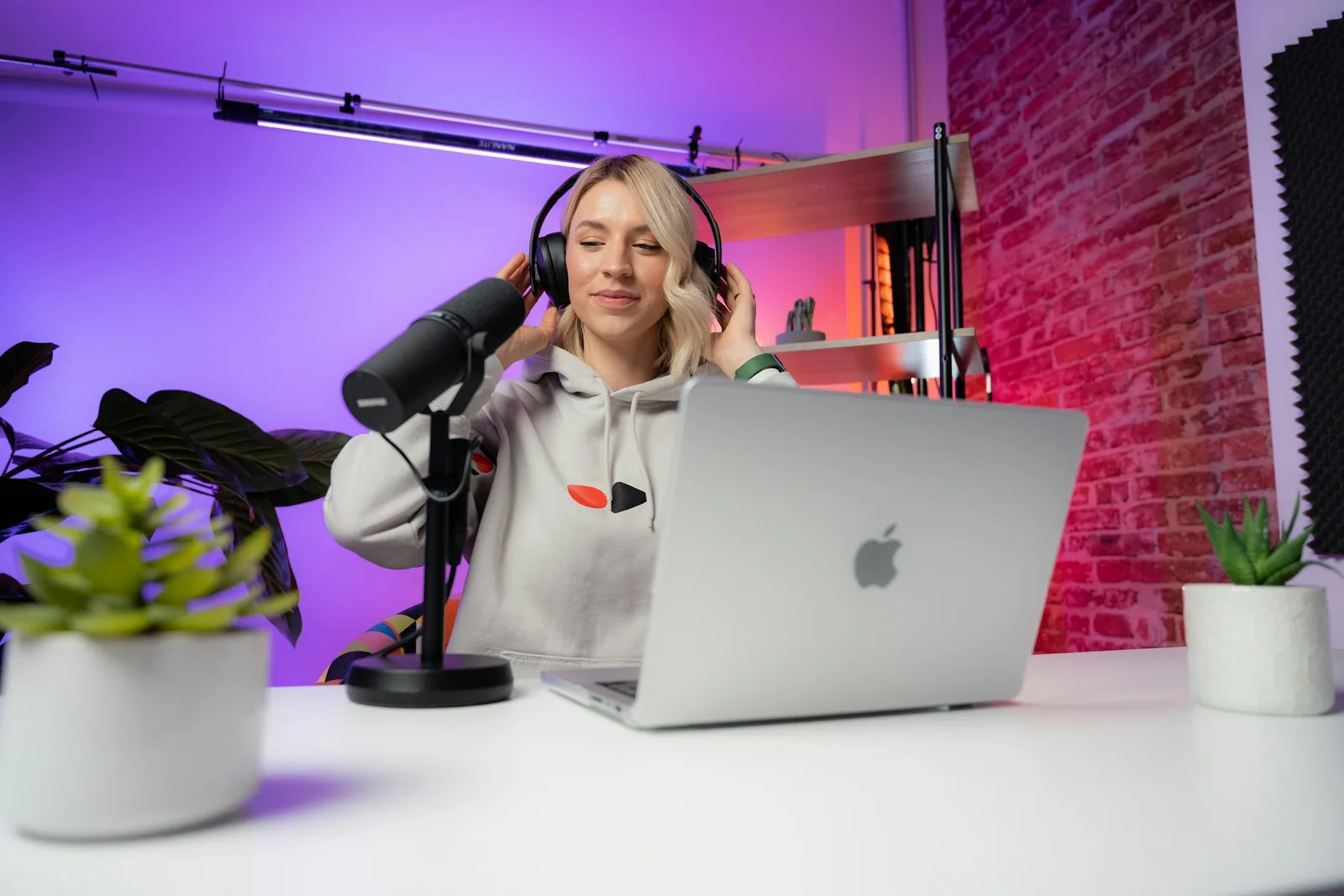
Cover photo: Videodeck .co, on Unsplash.

About Lee Sugano
Lee Sugano
Digital solutions agency based in Japan, serving clients in 10+ countries. We share insights on development, design and digital marketing for companies that don't settle for generic.
Enjoyed this content?
Receive exclusive insights about web development, design, and digital marketing straight to your inbox.
No spam. Unsubscribe anytime.