Company Email Landing in Spam? Fix Your DNS Today
Is your corporate email going to spam? Discover how to fix it with essential DNS adjustments (SPF, DKIM, DMARC) and ensure your messages are delivered.

Is Your Company's Email Landing in the Spam Folder? Understand and Fix It Today
Received a bounce-back saying your proposal never arrived? Customers complaining about unread emails? If your company's email is landing in the spam folder, the good news is that the solution, most of the time, lies in technical adjustments you can make yourself. Google and Yahoo's requirements for corporate email delivery have become stricter starting February 2024, focusing on sender authenticity and security. This practical guide will show you how to turn these requirements into three essential DNS records and a verification test, ensuring your messages reach their destination.
Understanding and implementing correct DNS (Domain Name System) configurations is crucial for maintaining your domain's reputation and ensuring your emails aren't marked as unwanted. Let's break down what you need to do.
Key Points
- Authentication is Key: SPF and DKIM are your first shields against spam.
- Volume Matters: Above 5,000 emails/day, DMARC and one-click unsubscribe are mandatory.
- Monitoring is Continuous: Keep your spam rate below 0.3%.
- Patience for Propagation: DNS adjustments can take time to be recognized.
Why Is Your Corporate Email Landing in Spam?
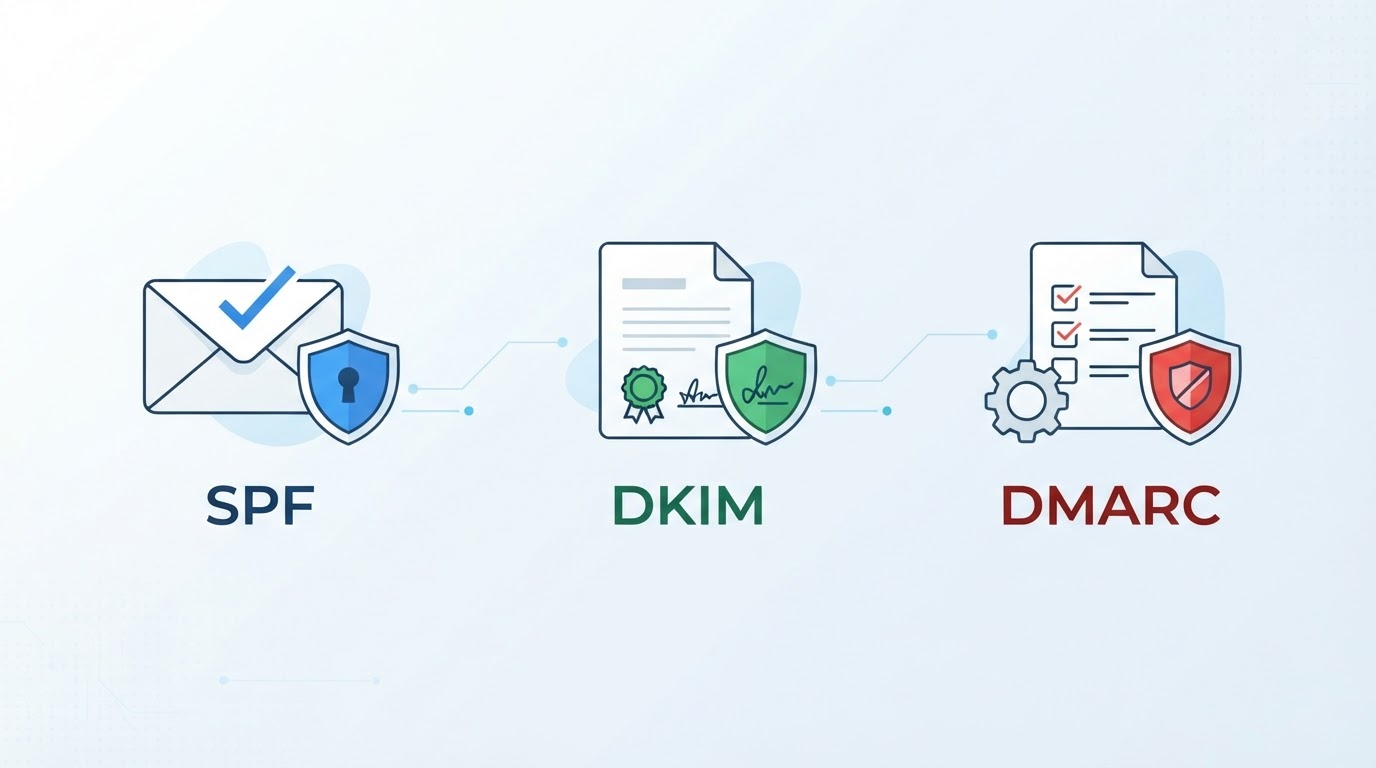
When an email with your company's domain ends up in the spam folder, the cause is almost always related to three fundamental DNS records: SPF, DKIM, and DMARC. These configurations act as an authenticity seal, allowing email providers (like Google and Yahoo) to confirm that you are indeed who you claim to be. Without them, your messages can be easily filtered.
Google's guidelines for email senders, which took effect on February 1, 2024, establish clear requirements. For all senders, it's necessary to have SPF (Sender Policy Framework) or DKIM (DomainKeys Identified Mail) configured for the sending domain. Additionally, sending must occur over a TLS (Transport Layer Security) connection, forward and reverse DNS records must be valid, and the sending IP address must match that specified in the PTR (Pointer Record). The DKIM key must be at least 1,024 bits, with 2,048 bits recommended for enhanced security. The spam rate, monitored in Postmaster Tools, must be kept below 0.3%, with a recommended target below 0.10%.
Additional Requirements for High-Volume Sending
For companies sending more than 5,000 messages per day, the requirements increase. In these cases, it's mandatory to configure DMARC (Domain-based Message Authentication, Reporting, and Conformance) email authentication for your domain, ensuring alignment between the 'From:' header domain and the domains verified by SPF or DKIM. This means the email recipient can be certain it truly came from your domain.
Furthermore, at higher volumes, offering one-click unsubscribe is mandatory. This is done through specific headers like List-Unsubscribe-Post: List-Unsubscribe=One-Click and List-Unsubscribe, along with a clearly visible unsubscribe link in the message body. This practice not only complies with standards but also improves user experience and sender reputation.
What Does Yahoo Require?
Yahoo adopts a set of requirements similar to Google's, but with an important detail for bulk senders: the unsubscribe processing timeframe. Requirements include:
- SPF or DKIM configured for any sender.
- SPF and DKIM together, plus DMARC with a
p=nonepolicy for bulk senders. - Spam rate below 0.3%.
- Unsubscribe processing within two days (
Honor unsubscribes within 2 days).
DMARC is crucial here, as it defines the policy for how emails failing SPF and DKIM checks should be handled. DMARC policies form a progressive ladder:
p=none: Only monitors and collects reports, without applying restrictions.p=quarantine: Emails failing authentication are sent to the spam folder.p=reject: Emails failing authentication are completely rejected.
For domains just starting configuration, the p=none policy is recommended for monitoring. Over time and with confidence in the results, you can migrate to p=quarantine and eventually p=reject for greater security. For a complete guide on how to configure these records, check out SPF, DKIM, and DMARC: How to Correctly Configure Your Email Domain.
Most Common DNS Configuration Errors
When implementing fixes, two configuration errors are particularly recurrent and can invalidate your efforts:
- Publishing Multiple SPF Records: It's common for companies to try adding new authorizations to an existing TXT record for SPF, creating a second SPF record. The correct approach is that there should only be one TXT record for SPF per domain. All authorizations must be combined into a single record. If you already have an SPF record and need to add new services (like a marketing email provider), you must edit the existing record to include the new inclusions (
include:). - Testing Before Propagation: After making DNS changes, you need to wait. The propagation of these changes across the internet can take anywhere from 15 minutes to 48 hours, depending on the DNS server configurations worldwide. Attempting to verify the configuration immediately after publication may yield incorrect results and frustrate the process.
It's essential to be patient and use DNS verification tools after the recommended propagation period to confirm that the changes have been applied correctly.
Step-by-Step Guide to Fixing Your DNS
To ensure your corporate emails stop landing in spam, follow these steps focused on DNS records:
1. Check Your Current DNS Records
Before making any changes, access your DNS provider's control panel (usually where you registered your domain or where your hosting manages DNS). Look for the DNS management section and identify TXT records. Note down any existing SPF and DKIM records, if present.
2. Configure the SPF Record
SPF authorizes which email servers are permitted to send messages on behalf of your domain. It's a TXT record.
- For those sending up to 5,000 emails per day: If you don't have an SPF record, create a TXT record with the value
v=spf1 include:_spf.google.com ~all(if using Gmail) or adapt it to include your current email provider. If you already have one, ensure it contains the correct inclusion for your sending provider and ends with~all(softfail) or-all(fail). - For those sending over 5,000 emails per day: In addition to a robust SPF that includes all your authorized senders, you will need a configured DMARC record.
Example of a combined SPF record:
"v=spf1 include:spf.protection.outlook.com include:_spf.google.com include:sendgrid.net ~all"This example combines authorizations for Outlook, Google, and SendGrid.
3. Configure the DKIM Record
DKIM adds a digital signature to your emails, allowing the recipient to verify that the content hasn't been altered in transit and that the sender is legitimate.
- DKIM configuration is typically done in the panel of your email provider or sending service (like Google Workspace, Microsoft 365, SendGrid, Mailchimp). You'll need to generate public and private keys and add a TXT record to your DNS with the public key. The DKIM record value is long and starts with
k=rsa; p=.... - Ensure the DKIM key is at least 1,024 bits.
Example DKIM record (simplified value for illustration):
v=DKIM1; k=rsa; p=MIIBIjANBgkqhkiG9w0BAQEFAAOCAQ8AMIIBCgKCAQEA...The hostname (Host/Name) for this DKIM record is usually a specific selector, such as google._domainkey or default._domainkey.
4. Configure the DMARC Record (Essential for High Volume)
DMARC instructs receiving servers on what to do with emails that fail SPF and DKIM checks, and it also provides reports.
- To start, create a TXT record for
_dmarc.yourdomain.com.br.
Example DMARC record for monitoring (p=none):
"v=DMARC1; p=none; rua=mailto:dmarc-reports@yourdomain.com; fo=1"p=none: Monitoring policy. Your emails won't be affected, but you'll receive reports.rua: Email address to receive aggregate reports.fo=1: Indicates to generate a report if any of the checks (SPF or DKIM) fail.
Testing Your Configurations
After implementing SPF, DKIM, and DMARC records, testing is crucial. Several free online tools can verify the health of your DNS for email:
- MXToolbox: Offers SPF, DKIM, and DMARC tests.
- Google Admin Toolbox (Check MX): To verify Google Workspace configurations.
- Dmarcanalyzer or Vali Mail: More advanced tools for monitoring and analyzing DMARC reports.
Enter your domain and check if the records are visible and configured correctly. Remember to wait for propagation time, which can take up to 48 hours.
Frequently Asked Questions
What is DNS and why does it affect my email?
DNS (Domain Name System) is like the internet's phonebook. It translates easy-to-remember domain names (like yourcompany.com.br) into IP addresses that computers use. For emails, specific DNS records (SPF, DKIM, DMARC) tell receiving servers how to verify your domain's authenticity, indicating which servers are allowed to send emails on your behalf and how to check message integrity.
How long does it take for DNS changes to take effect?
DNS record changes can take anywhere from 15 minutes to 48 hours to fully propagate across the internet. This depends on the configuration of DNS servers worldwide and the Time To Live (TTL) set for each record. It's recommended to wait at least 24 hours before performing definitive tests.
My spam rate is above 0.3%. What should I do?
A spam rate above 0.3% is a warning sign. Start by investigating the source of emails being marked as spam. It could be an outdated email list, inappropriate content, or even a security compromise. Tools like Google's Postmaster Tools can help identify patterns. Review your sending lists, offer clear unsubscribe options, and segmenting your audience can help improve this metric.
Do I need to configure SPF and DKIM if I send few emails?
Yes. Google and Yahoo's guidelines apply to all senders. While DMARC and one-click unsubscribe requirements are for high volume, having correctly configured SPF or DKIM is a basic requirement for any domain sending emails, regardless of volume, to ensure your messages aren't automatically discarded.
Conclusion: Protect Your Domain's Reputation
Resolving the issue of emails landing in spam is fundamental for your company's communication and image. Correctly implementing DNS records like SPF, DKIM, and DMARC is not just a best practice but a necessity to ensure your messages are delivered on platforms like Gmail and Yahoo.
Your domain's reputation is a valuable asset. Invest time in correct DNS configuration and reap the rewards of reliable and effective communication.
Start today by checking your DNS records and following the steps described. If you use a marketing email service, consult its documentation for the exact record values to configure. Communication that reaches the recipient is the first step to closing deals and strengthening customer relationships. And if you're looking to optimize your website's overall performance, consider how to optimize INP for an even better user experience. The security and delivery of your corporate emails depend on these actions.

Sobre a Lee Sugano
Lee Sugano
Agência de soluções digitais com base no Japão e clientes em mais de 10 países. Compartilhamos insights sobre desenvolvimento, design e marketing digital para empresas que não aceitam genérico.
Enjoyed this content?
Receive exclusive insights about web development, design, and digital marketing straight to your inbox.
No spam. Unsubscribe anytime.